My Blog
Shopify Product Variants: 5 Easy Hacks to Boost Your Sales This Spring
Managing your Shopify store doesn’t have to be complicated. Especially when it comes to product options. If you sell items that come in different sizes, colors, or materials, Shopify’s product variants feature is your new best friend!

Managing your Shopify store doesn’t have to be complicated. Especially when it comes to product options. If you sell items that come in different sizes, colors, or materials, Shopify’s product variants feature is your new best friend!
Product variants allow you to offer multiple versions of the same item without creating separate product listings. This makes your store more user-friendly and potentially boosts your conversions.
Ever noticed how frustrating it is when you find something you love online but can’t figure out if it comes in your size or preferred color? That’s exactly what variants solve for your customers.
With Shopify, you can add up to three option types (like size, color, and material) per product. This creates unique combinations that customers can easily browse and select from the same product page.
While Shopify does have a limit of 100 variants per product, there are apps in the Shopify App Store that can help you expand beyond this if needed.
Let’s dive deeper into how you can set up and optimize product variants to create a smoother shopping experience for your customers and simplify your inventory management…
The Basics of Shopify Product Variants
Product variants are what make your Shopify store flexible and customer-friendly. They let shoppers pick exactly what they want from your products, whether it’s a different size, color, or material.
What Are Product Variants?
Product variants are different versions of the same product. Think of a t-shirt that comes in multiple colors and sizes – each combination (like “Small Red” or “Large Blue”) is a variant.
Shopify lets you create up to 3 different options per product (like size, color, and material). When these options combine, they form unique variants. For example, a t-shirt with 3 sizes and 4 colors would have 12 total variants.
Each variant can have its own:
- Price
- SKU (stock keeping unit)
- Barcode
- Inventory tracking
- Product ID (unique identifier)
This system helps keep your store organized while giving customers choices they love.
Understanding Variant Attributes
Each variant has specific attributes that make it unique within your product lineup. These attributes make inventory management easier and help customers find exactly what they want.
Core Variant Attributes:
- Title: Usually auto-generated from option combinations
- Price: Can be different from the base product price
- Compare-at price: For showing discounts
- SKU: Your unique product code
- Barcode: For inventory scanning
- Inventory tracking: Quantity available
Variants are created and updated with timestamps (created_at and updated_at fields), which helps with tracking product changes. Each variant also gets its own inventory_item_id for backend management.
Good variant organization makes for happy customers and easier store management!
Setting Up Your First Variants
Adding variants to your Shopify store is straightforward. Here’s how to get started:
- Go to Products > All products in your Shopify admin
- Select the product you want to add variants to
- In the Variants section, tap Add options like color, size, etc.
- Enter your option names (like “Size” or “Color”)
- Add the values for each option (like “Small, Medium, Large” or “Red, Blue, Green”)
You can add up to 3 different option types per product. Shopify will automatically create all possible combinations of your variants.
After creating variants, you can edit details for each one:
- Adjust prices individually
- Set inventory quantities
- Add unique SKUs and barcodes
Don’t worry about getting everything perfect right away. You can always edit your variants later as needed.
Images and Swatches for Variants
Good visuals help customers understand what they’re buying. For each variant, you can add specific images that show exactly what that option looks like.
Adding Variant Images:
- Click on a variant in your product editor
- Upload or select an image that shows that specific variant
- This image will display when customers select that variant
For color options, consider adding color swatches. These small colored blocks let customers quickly see available colors without clicking through multiple images.
Many Shopify themes support swatch displays automatically, or you can add apps like “NS Color Swatch” for more customization options. These tools create a better shopping experience on your product pages.
High-quality, consistent images for all variants create trust and reduce return rates. Try to shoot all variant photos in similar lighting and from similar angles.
Advanced Variant Configurations
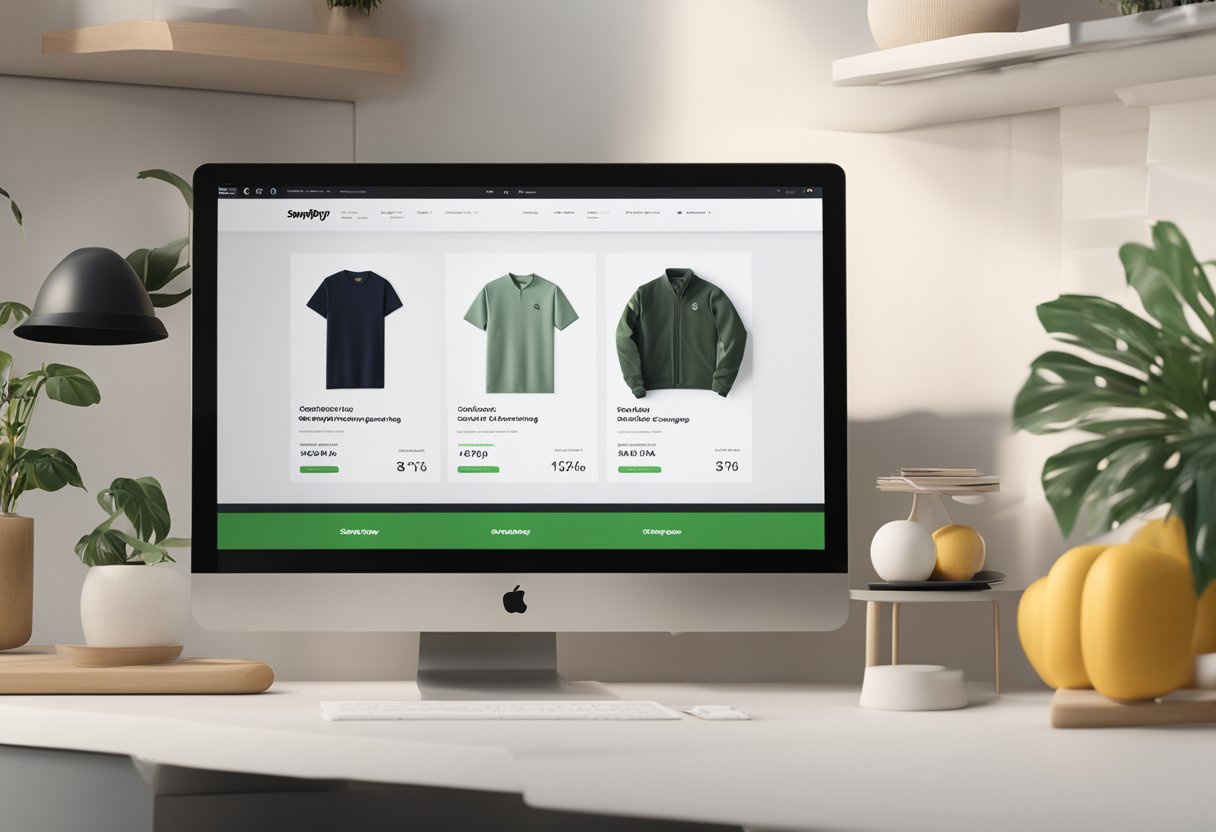
Managing complex product options in Shopify can transform your store from basic to brilliant. Advanced configurations help you create flexible pricing models, keep track of inventory across variants, and offer personalized products that customers love.
Pricing Strategies
Want to charge different prices for different sizes or colors? Shopify makes this super easy! You can set unique prices for each variant combination to reflect differences in production costs or perceived value.
Popular pricing approaches:
- Tiered pricing: Charge more for larger sizes (Small $10, Medium $12, Large $15)
- Premium options: Add $5 for special colors or materials
- Bundle discounts: Offer price breaks when customers select certain combinations
The “Compare at Price” feature is especially handy for showing sale prices. When you set a higher compare-at price, Shopify automatically displays the savings to customers.
Don’t forget about bulk pricing! For products that come in different quantities, you can set different prices per unit to encourage larger purchases.
Inventory Management for Variants
Keeping track of inventory across dozens of variants can get tricky. We’ve got some tips to make it easier!
Shopify lets you track inventory for each variant separately. This means you’ll know exactly how many blue small shirts and red large shirts you have in stock.
Inventory management tips:
- Set low stock alerts to notify you when variants need reordering
- Use the “Continue selling when out of stock” option for made-to-order items
- Consider inventory policy settings (deny when out of stock vs. allow backorders)
For variants that require different shipping methods, you can adjust the “requires shipping” and “weight” fields individually. This is super helpful if some variants are digital while others are physical.
Taxable settings can also be configured at the variant level if some versions of your product have different tax requirements.
Customizing Variants for Personalized Products
Personalized products are huge sellers! With advanced variant options, you can offer custom text, monograms, or special requests.
Ways to personalize products:
- Add text fields for names or messages
- Create dropdown menus for engraving fonts
- Include file upload options for custom images
The Advanced Variant app from the Shopify App Store lets you create conditional rules between options. For example, if a customer selects “Gift Wrapping,” you can automatically show gift message options.
Custom properties like UPC, ISBN, or other internal identifiers can be added to variants to help with your backend organization. These won’t show to customers but will help with your inventory management.
Remember to update your product descriptions to highlight personalization options. Customers love knowing they can make products their own!
Exporting and Importing Variants via CSV
Managing hundreds of variants manually is no fun. That’s where CSV files come in handy!
With Shopify’s import/export feature, you can:
- Update pricing for multiple variants at once
- Change inventory levels in bulk
- Add new option combinations quickly
CSV import/export process:
- Export your current products to CSV
- Make your changes in spreadsheet software
- Save as CSV and import back to Shopify
- Review for any import errors
The CSV format is perfect for working with large product catalogs. You can easily add columns for weight, grams, SKUs, barcode information, and fulfillment services.
When updating existing variants, make sure to include the variant ID column. This way, Shopify knows which records to update. Otherwise, you might create duplicate variants instead of updating the existing ones.