My Blog
Shopify Theme Customization: 5 Easy Hacks to Make Your Store Pop in Spring 2025
Customizing your Shopify theme can transform a basic online store into a unique shopping destination that reflects your brand’s personality. Whether you’re just starting out or looking to refresh your existing store, the theme editor makes it easy to change colors, layouts, and c…
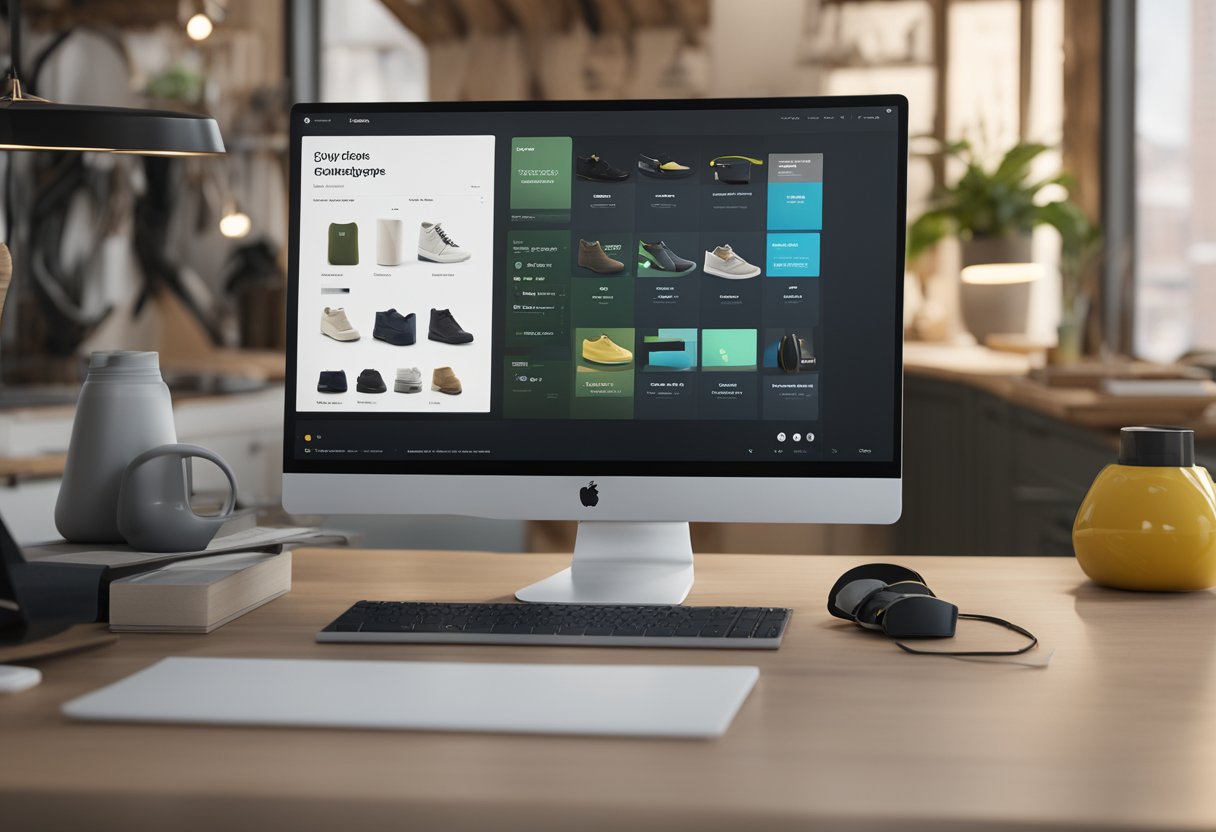
Customizing your Shopify theme can transform a basic online store into a unique shopping destination that reflects your brand’s personality. Whether you’re just starting out or looking to refresh your existing store, the theme editor makes it easy to change colors, layouts, and content without any coding knowledge.
With Shopify’s theme editor, you can preview changes in real-time, add or remove sections, and completely overhaul your store’s appearance through a user-friendly interface.
Want to stand out from the competition? Your online store’s look and feel matters just as much as the products you sell. The good news is that Shopify offers over 100 professionally designed themes (both free and premium options) that serve as excellent starting points.
From there, you can customize everything from fonts and colors to page layouts and navigation menus – all without touching a single line of code!
Let’s dive deeper into the world of Shopify theme customization, where we’ll explore the theme editor’s capabilities, share some pro tips for creating an engaging shopping experience, and show you how to make your store truly yours with just a few clicks…
Diving Into Shopify Theme Customization
Shopify theme customization is all about making your online store truly yours. When you customize your theme, you’re crafting a unique shopping experience that reflects your brand and delights your customers.
Understanding Shopify Themes
Shopify offers both free and paid themes, each with its own personality and features. Free themes are great for beginners, while paid themes often include more advanced functionality and design options.
When selecting a theme, consider:
- Your industry (fashion, electronics, food, etc.)
- Your catalog size (how many products you’ll display)
- Your desired functionality (product filtering, image zoom, etc.)
Before making any changes, always duplicate your theme as a backup. This safety net lets you experiment without fear of breaking your live store.
The backbone of Shopify themes includes templates for different page types like home, collection, and product pages. These templates use Liquid, Shopify’s templating language, along with HTML, CSS, and JavaScript.
Visual Storytelling Through Layouts
Your store’s layout is the canvas for your brand story. The homepage is often your first impression, so make it count!
Start with these key layout elements:
- Header – Keep navigation clear and include search functionality
- Hero section – Feature eye-catching images or videos with clear calls-to-action
- Product highlights – Showcase bestsellers or featured collections
The Theme Editor lets you drag and drop sections to create your ideal layout. Play with spacing, colors, and typography to create visual harmony.
Product pages deserve special attention too. Consider adding multiple product images, videos, and detailed descriptions. The goal is to answer all customer questions before they even ask.
Fine-Tuning the User Experience
A smooth user experience keeps customers coming back. Navigation should be intuitive with clear categories and a logical flow from browsing to checkout.
Mobile optimization is non-negotiable! Over 70% of Shopify store traffic comes from mobile devices. Test your store on different devices to ensure everything looks great and functions perfectly.
Speed matters enormously. Large images can slow your store down, so compress them before uploading. Remove unused apps and features that might bloat your site.
The checkout experience should be seamless with:
- Minimal form fields
- Multiple payment options
- Clear shipping information
- Transparent fees
Remember to add trust signals like security badges and customer reviews to reassure shoppers during their purchase journey.
Mastering the Code Behind the Curtains

Going beyond the theme editor means diving into the actual code that powers your Shopify store. This is where you can make truly unique customizations that set your e-commerce platform apart from the competition.
HTML, CSS, and Scripts – Oh My!
The foundation of any Shopify theme is a combination of HTML, CSS, and JavaScript. HTML creates the structure, CSS makes it pretty, and JavaScript adds functionality. Pretty simple, right?
To get started, access your theme code by going to:
- Online Store → Themes
- Click “Actions” on your current theme
- Select “Edit code”
You’ll see a file structure with folders like:
layout(controls overall structure)templates(specific page designs)sections(reusable content blocks)snippets(small reusable code bits)
Don’t worry about breaking things! Shopify automatically creates theme backups. Plus, you can always duplicate your theme before making changes.
For image optimization, we recommend using WebP format. It loads faster and looks great, which helps your conversion rates!
Leveraging Shopify’s APIs for a Powerful Shop
Shopify offers several APIs that let you create more dynamic shopping experiences. The main ones you’ll want to know about are:
Storefront API: This lets you create custom shopping experiences using GraphQL. Great for headless setups!
Admin API: Perfect for building tools that help you manage your store behind the scenes.
We’ve found that the Storefront API is especially useful for creating custom product pages that load blazing fast. You can pull in just the data you need without unnecessary bloat.
To use these APIs effectively:
- Get API credentials from your Shopify admin
- Learn the basics of REST or GraphQL (depending on which API you use)
- Test your requests in a development environment first
The Development Workflow
A smooth development workflow will save you hours of frustration. Here’s what we recommend:
First, set up Theme Kit or Shopify CLI. These tools let you work on your theme locally and sync changes to your store. No more copy-pasting code!
Local development steps:
-
Install your preferred tool (Theme Kit or Shopify CLI)
-
Download a copy of your theme
-
Make changes locally
-
Test in your browser
-
Push changes to your store
We recommend creating a development store to test major changes. This keeps your live store running smoothly while you experiment.
Git also offers version control and lets you roll back changes if something goes wrong.
Becoming a Shopify Partner gives you access to more development tools and resources. Plus, you can create unlimited development stores!