My Blog
Shopify Theme Customization: 5 Easy Hacks to Make Your Store Pop in Spring 2025
Are you tired of having an online store that looks just like everyone else’s? Customizing your Shopify theme is the key to creating a unique brand experience. This captures attention and converts visitors into customers.
Are you tired of having an online store that looks just like everyone else’s? Customizing your Shopify theme is the key to creating a unique brand experience. This captures attention and converts visitors into customers.
With Shopify’s theme editor, you can easily transform your store’s look and feel without needing coding skills. The editor allows you to preview your theme, adjust settings, and rearrange content to match your vision. If you’re feeling more adventurous, you can also dive into the theme code for more advanced customizations.
We know how important it is to stand out in the competitive e-commerce world. That’s why we’re excited to share our favorite Shopify theme customization tips and tricks with you. Let’s dive deeper into how you can take your online store from basic to breathtaking in just a few simple steps…
Getting Started with Shopify Theme Customization
Customizing your Shopify theme is easier than you might think! We’ll walk you through the basics of themes, help you decide between free and premium options, and show you how to navigate the settings to make your store truly yours.
Understanding the Basics of Shopify Themes
Shopify themes are templates that control how your online store looks and feels. Think of them as the skin of your store! Each theme includes:
- Layouts: How elements are arranged on your pages
- Sections: Customizable blocks of content
- Templates: Special designs for specific pages (like product pages)
The theme editor is your command center for making changes. You can find it in your Shopify admin under “Online Store” → “Themes.” From there, click “Customize” to open up a world of possibilities!
No coding skills? No problem! Most customizations can be done through the visual editor. Just click what you want to change, make your edits, and see them update in real-time.
Choosing Between Free and Paid Themes
Shopify offers both free and paid themes, and each has its perks!
Free themes are:
- Great for beginners
- Professionally designed
- Mobile-friendly
- Regularly updated
Paid themes (typically $150-$350) offer:
- More specialized features
- Industry-specific designs
- Advanced customization options
- Priority support
We recommend starting with a free theme if you’re new to Shopify. Dawn, the default theme, is super flexible and modern. You can always upgrade later when you know exactly what features you need.
Remember that a simpler theme that loads quickly will often convert better than a fancy one that’s slow!
Navigating the Theme Store and Theme Settings
Finding and setting up your perfect theme is a breeze! To browse available options, visit the Shopify Theme Store through your admin panel. You can filter themes by:
- Industry type
- Price (free vs. paid)
- Features you need
- Layout style
Once you’ve installed a theme, diving into the settings is where the fun begins! The theme editor has two main areas:
- Sections tab: Add, remove, and rearrange content blocks on your pages
- Theme settings tab: Control store-wide elements like colors, fonts, and buttons
Don’t be afraid to experiment! All changes in the editor are previewed before publishing, so you can play around without affecting your live store. Click “Save” only when you’re happy with your changes.
Diving Deeper: Advanced Customizations and Branding
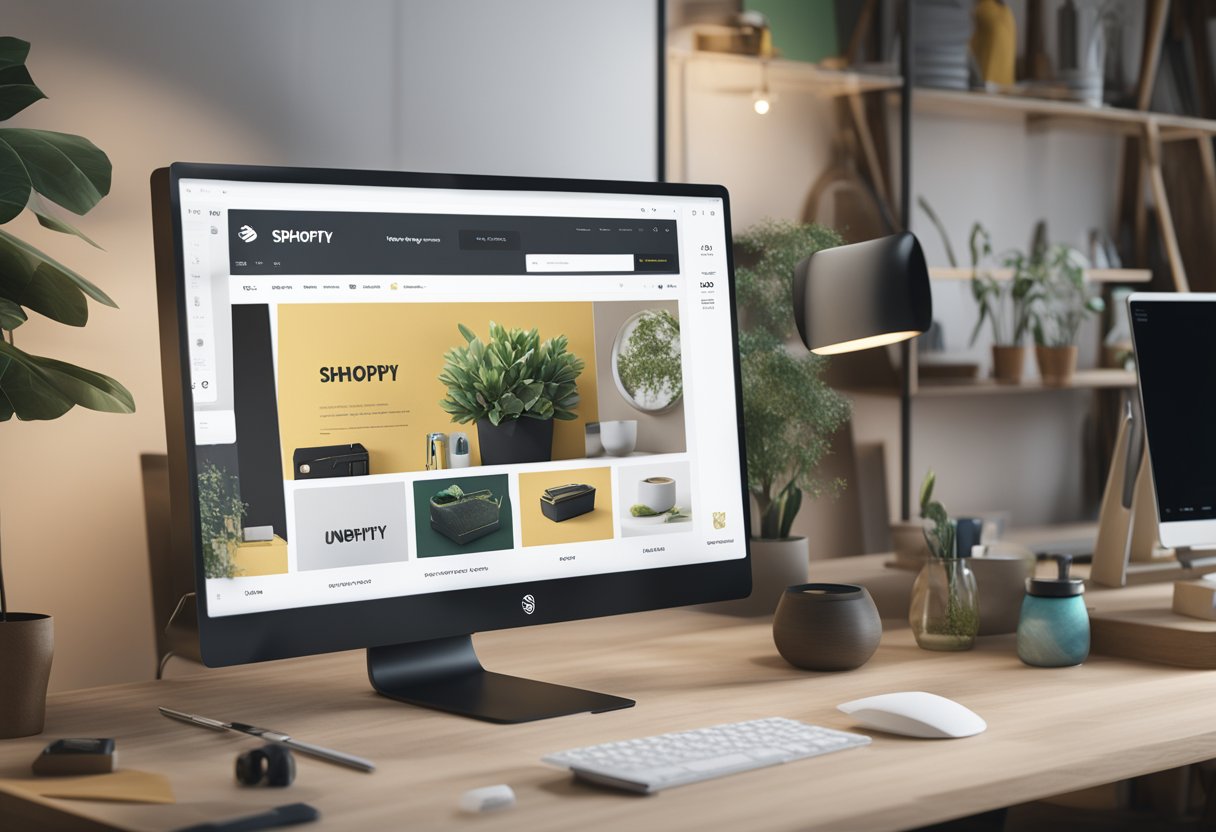
Once you’ve mastered the basics of Shopify theme customization, it’s time to take your store to the next level with more sophisticated techniques. Advanced customizations allow you to create a truly unique shopping experience that perfectly reflects your brand identity.
Tweaking with CSS and HTML
Ever looked at your Shopify store and thought, “I wish I could just move that button over there”? That’s where CSS and HTML come in handy! These coding languages let you make precise adjustments to your theme.
To get started with CSS customizations:
- Navigate to your theme’s Edit Code section
- Look for the
custom-css.liquidfile (or create one if it doesn’t exist) - Add your custom CSS code to target specific elements
/* Example: Change button colors */
.btn {
  background-color: #ff5500;
  color: white;
}
HTML modifications allow you to change the structure of your pages. We recommend creating a backup before making structural changes to your theme files!
Using these tools, you can adjust everything from spacing and colors to fonts and image sizes. Small tweaks can make a big difference in your store’s visual presentation.
Enhancing User Experience Through E-commerce Best Practices
A beautiful store isn’t worth much if customers can’t find what they’re looking for. Great UX (user experience) design helps visitors become buyers!
Some key areas to focus on:
- Navigation: Keep it simple and intuitive. Users should find products in 3 clicks or less.
- Product pages: Include high-quality images (WebP format works great), detailed descriptions, and clear CTAs.
- Checkout experience: Remove distractions and streamline the process to reduce cart abandonment.
Mobile optimization is non-negotiable these days. Over 60% of e-commerce traffic comes from mobile devices! Test your store on different screen sizes to ensure everything looks good and functions properly.
Loading speed matters too. Compress images, minimize scripts, and use Shopify’s built-in optimization tools to keep your store zippy.
Collaborating with Shopify Developers for Custom Solutions
Sometimes, you need expertise beyond what you can DIY. That’s when partnering with Shopify developers makes sense.
Professional developers can help with:
- Custom feature development that isn’t available in standard themes
- Integration with third-party APIs and services
- Complex functionality like custom product configurators
- Advanced checkout modifications
When choosing a developer or Shopify Partner, look for someone with experience in your specific industry. Ask to see their portfolio of previous store designs.
The development workflow typically involves discovery, planning, implementation, and testing phases.
Clear communication is key! Share your brand guidelines, examples of designs you like, and specific functionality requirements.
Professional help costs money upfront, but it often pays for itself through improved conversion rates and a more polished store that can boost sales.